tmux session with multiple panes
Working with the shell usually leads to more than one open terminal. But it’s very tedious to open several terminals and bring them in place before you can start with your work. Fortunately the terminal multiplexer tmux allows you (beside other great features) to open multiple terminal sessions in a single window. And with a simple one-liner shell script you get the terminal arrangement you prefer. Here are just a few examples. At the very end you find a few useful keystrokes to handle a tmux session.
Tested with:
| OS/Software | Version |
|---|---|
| Ubuntu | 18.04 LTS |
| tmux | 2.6 |
one pane left, two panes right
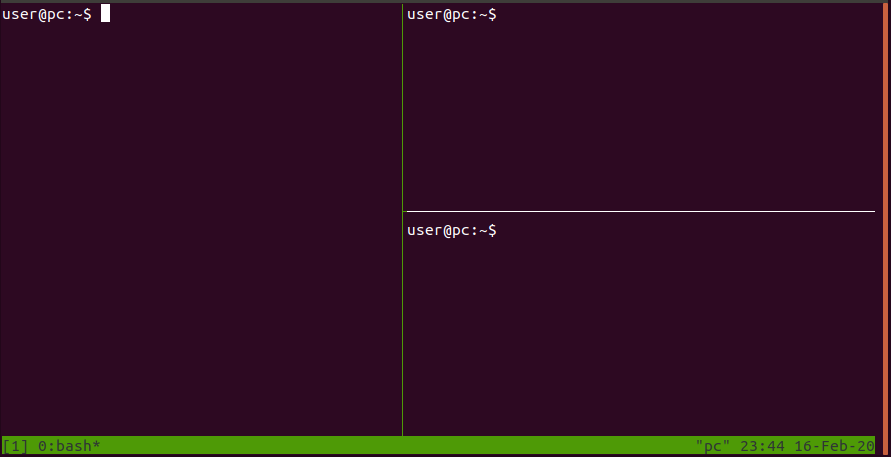
Create a executable shell script with the following content:
#!/bin/sh
tmux new-session \; split-window -h \; split-window -v \; attach
two panes left, two panes right
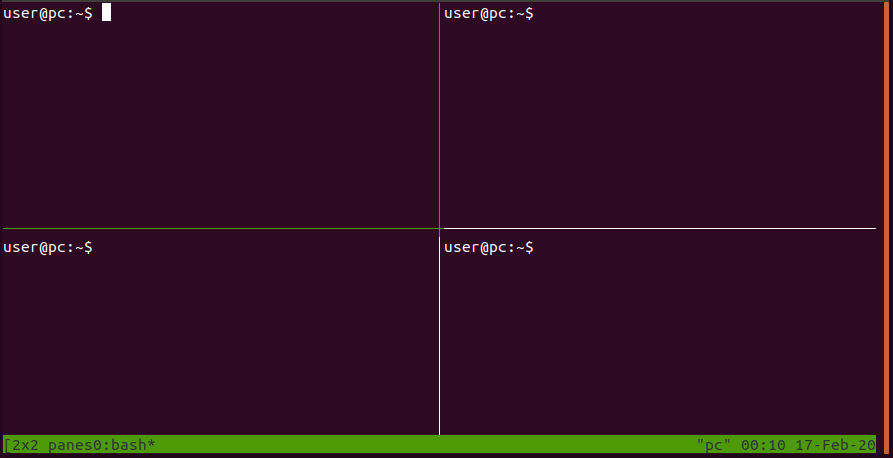
Create a executable shell script with the following content:
#!/bin/sh
tmux new -s '2x2 panes' \; split-window -h \; split-window -v \; select-pane -t 0 \; split-window -v \; attach
three panes left, three panes right
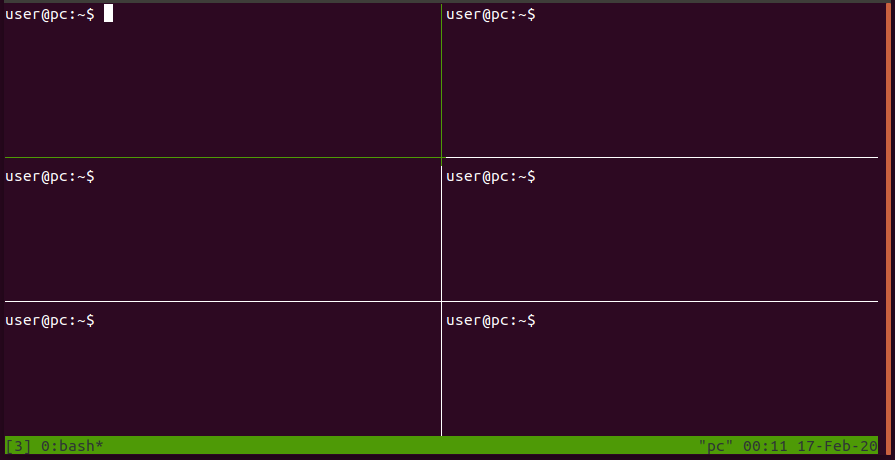
Create a executable shell script with the following content:
#!/bin/sh
tmux new-session \; split-window -p 66 \; select-pane -t 1 \; split-window -v \; select-pane -t 0 \; split-window -h \; select-pane -t 2 \; split-window -h \; select-pane -t 4 \; split-window -h \; select-pane -t 0
keystrokes
| keystroke | description |
|---|---|
| Ctrl-B cursor | switch from one terminal to another |
| Ctrl-B pg-up,-down | scroll inside a terminal |
| Ctrl-c | leave selected mode (e.g. scrolling) |
| Ctrl-B d | exit tmux session* |
*: To stop running tmux sessions, execute the following command:
$ tmux kill-session